5. Dashboard and settings
Once the integration is connected, the CRM section provides a dashboard with six tabs for monitoring and configuring the sync in detail.
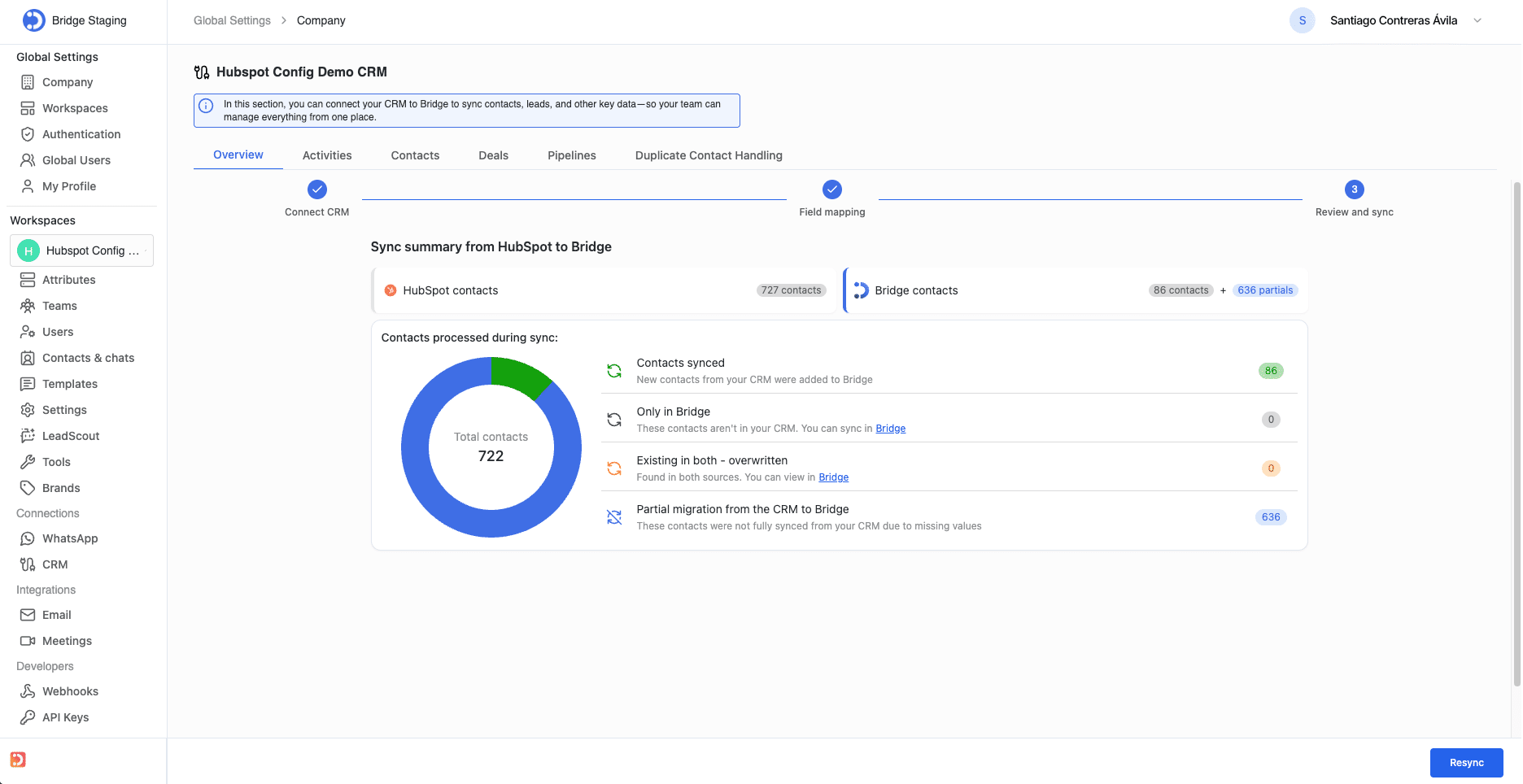
Overview tab
The Overview tab shows real-time sync statistics with a visual donut chart. Data updates automatically as the sync runs.
- Total contacts across both systems.
- Contacts synced: new contacts pulled from HubSpot into Bridge.
- Only in Bridge: contacts that exist in Bridge but not in HubSpot (with quick link to sync them).
- Existing in both, overwritten: contacts found in both systems with changes applied
- Partial migration: contacts not fully synced due to missing values.
- A Resync button in the bottom-right corner allows you to run a full sync from scratch. This is also the entry point to change or disconnect the HubSpot connection.
Activities tab
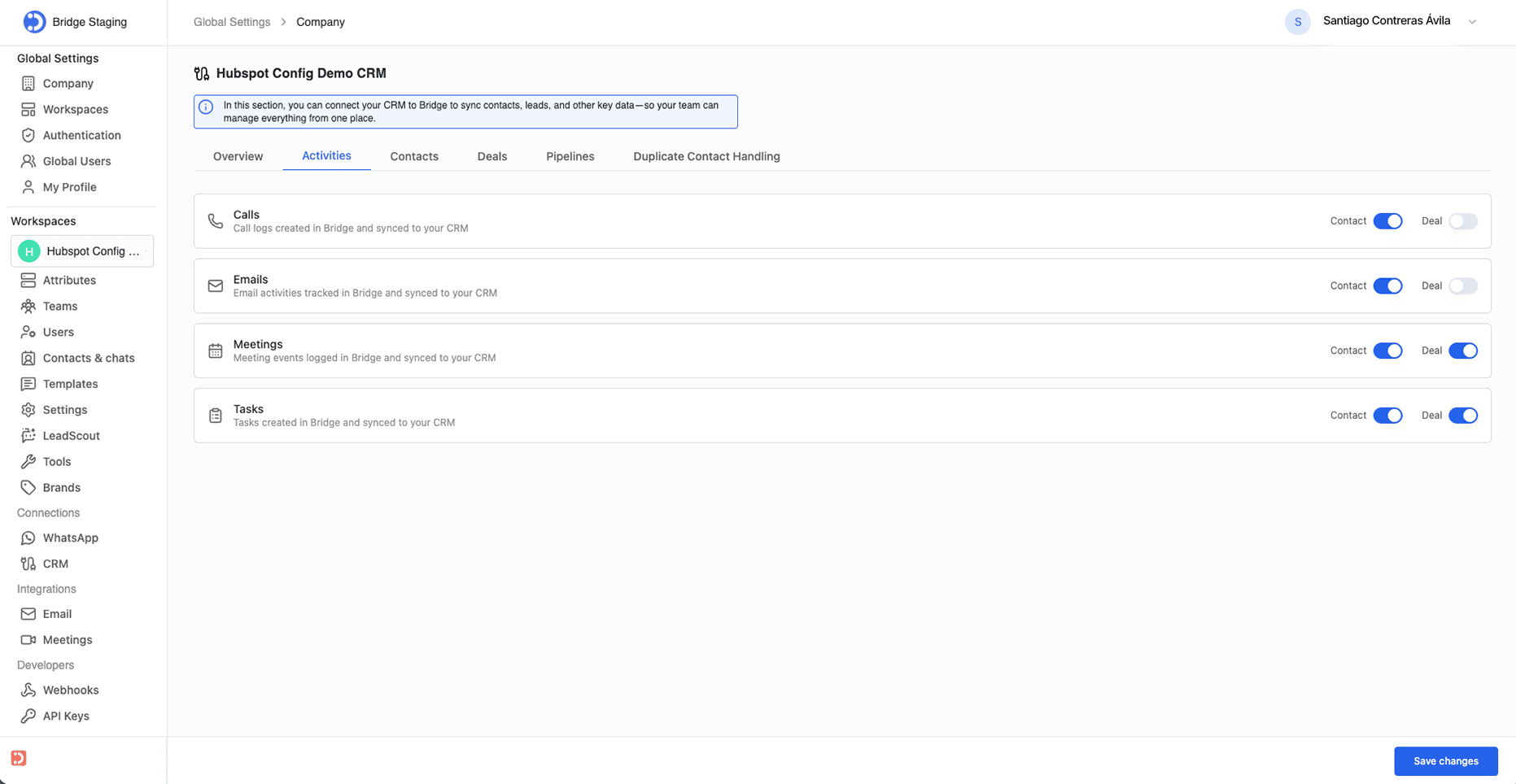
The Activities tab controls which activity types Bridge syncs to HubSpot. Each activity type has independent toggles for Contact-level and Deal-level association.
Contacts and Deals tabs
The Contacts and Deals tabs let administrators control field-level access. For each field, two toggles are available:
- Visible: whether the field appears in Bridge's interface.
- Editable: whether users can modify the field's value from Bridge.
Fields are grouped into logical sections. For Deals, the sections are:
- Deal Revenue: Amount (essential), Exchange rate
- Deal Activity: Closed Lost Reason, Closed Won Reason, Deal Stage (essential), Is Active Shared Deal.
- Deal Information: Close Date (essential), Create Date, Date of payment, Deal Name (essential), Deal Type, Deal Description, Deal probability, Forecast probability, Forecast category
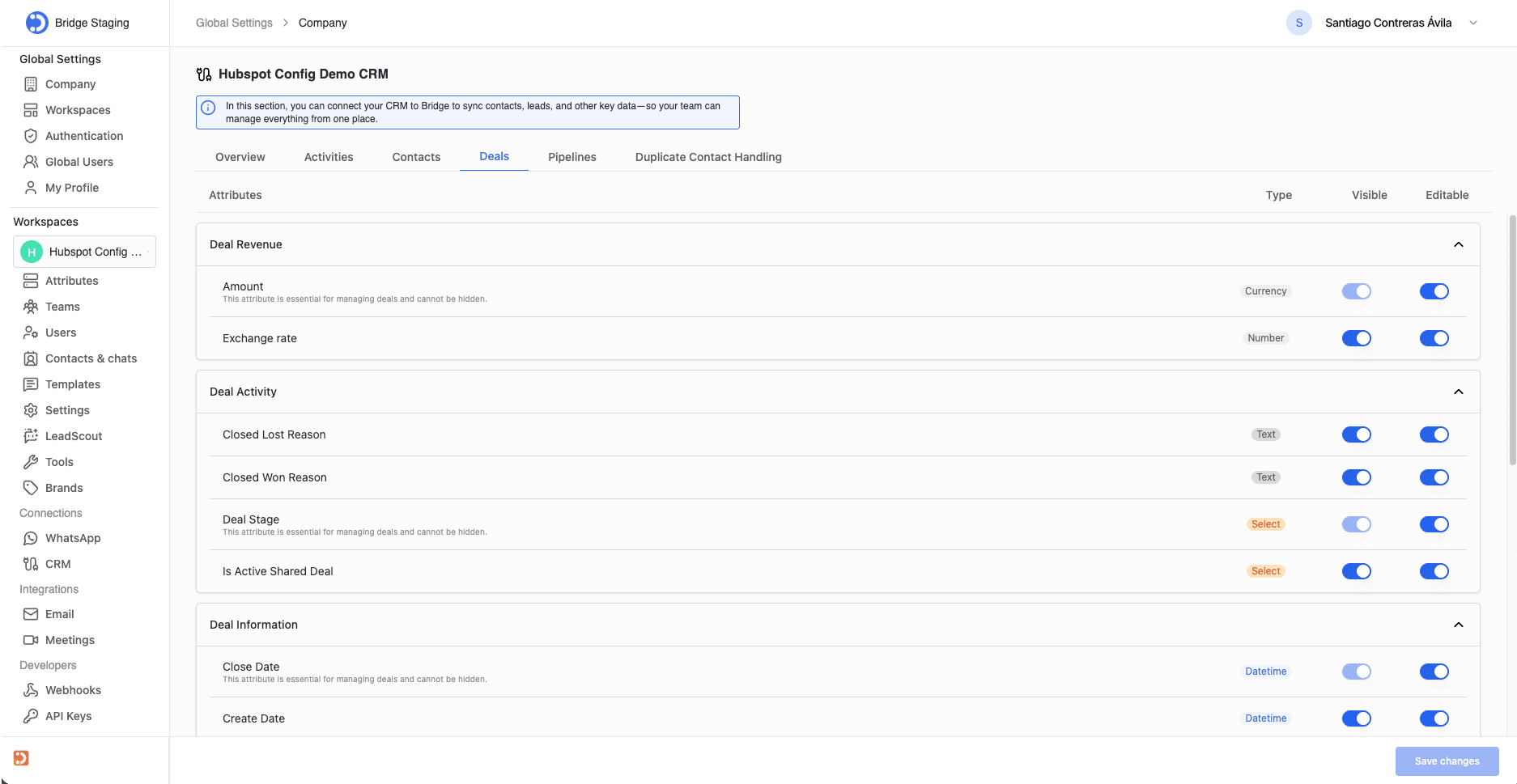
Essential fields: Some fields are marked 'essential for managing deals' and cannot be hidden (Amount, Deal Stage, Close Date, Deal Name). Their Visible toggle is disabled.
Pipelines tab
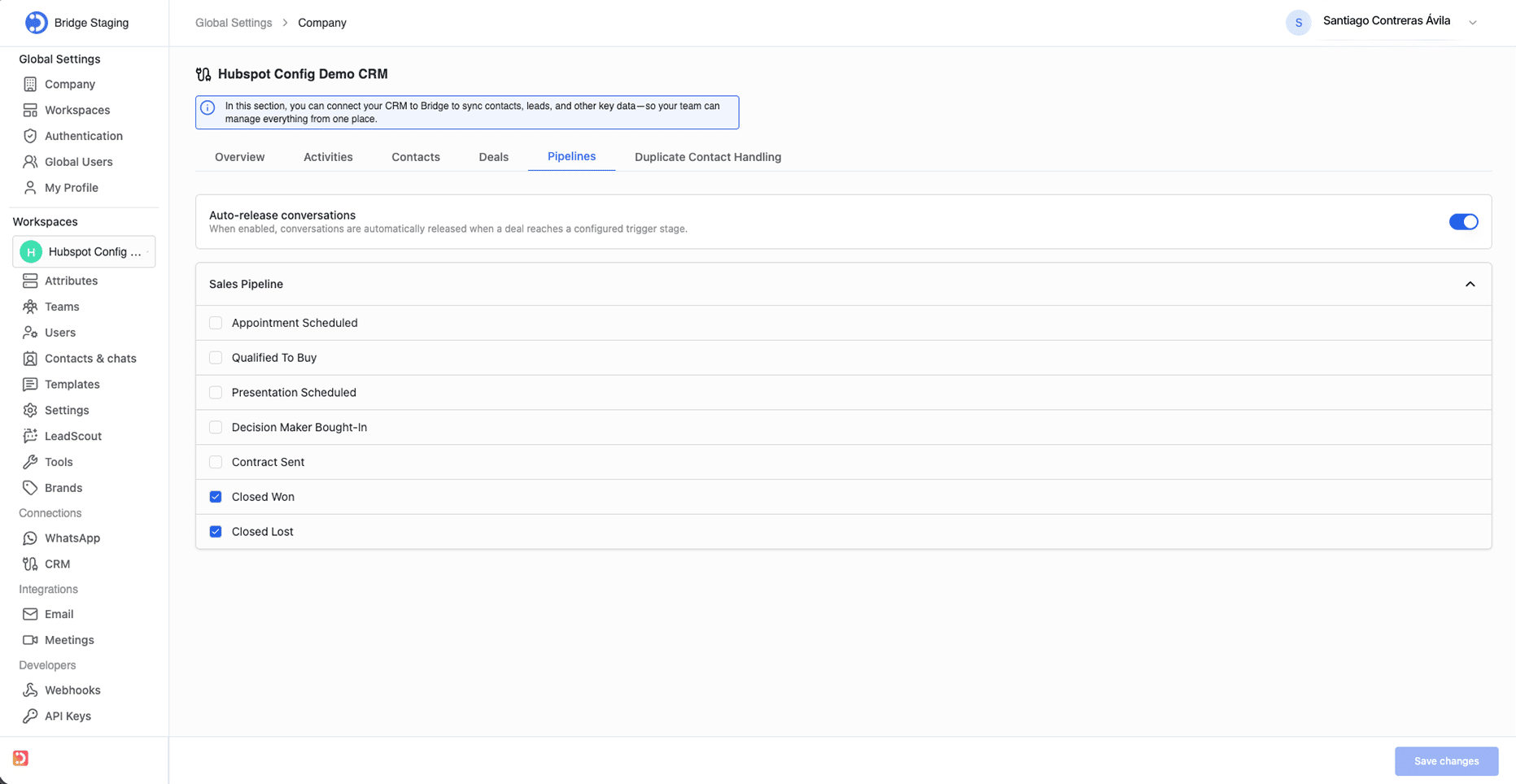
The Pipelines tab configures automatic conversation release based on HubSpot deal stages. When a deal reaches a configured trigger stage, Bridge automatically releases the associated conversation from the active queue. Auto-release configuration
- Enable the 'Auto-release conversations' toggle at the top of the tab.
- For each HubSpot pipeline, expand the section to view all its stages.
- Check the stages that should trigger auto-release (default: Closed Won and Closed Lost).
- Changes take effect immediately for new deal stage transitions.
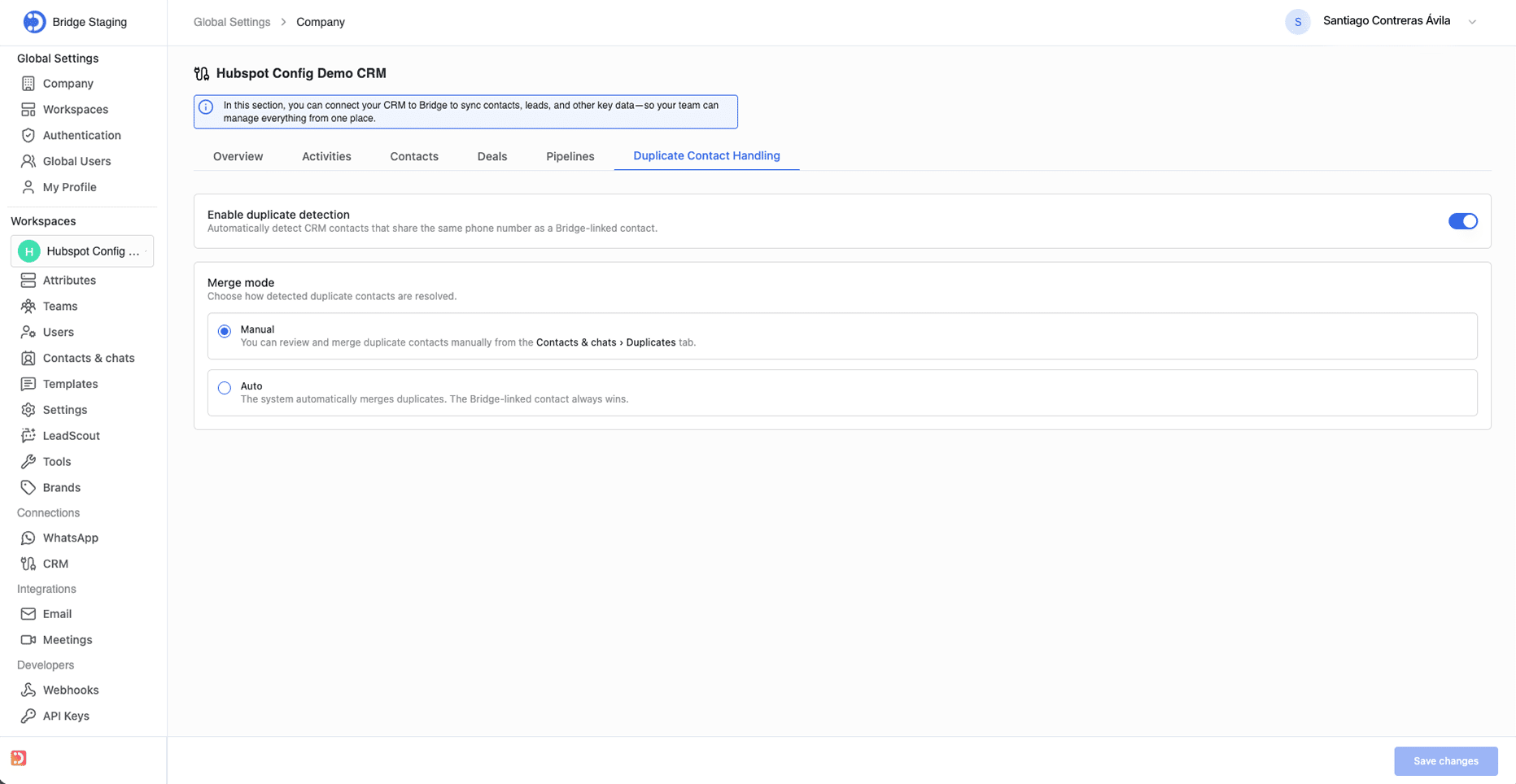
Duplicate Contact Handling tab
Bridge can detect and resolve duplicate contacts across both systems using phone number as the matching key. Configuration
- Enable duplicate detection: turns on automatic matching between HubSpot contacts and Bridge-linked contacts that share the same phone number.
- Merge mode: Manual or Auto.